5.2. Search (Full Search)
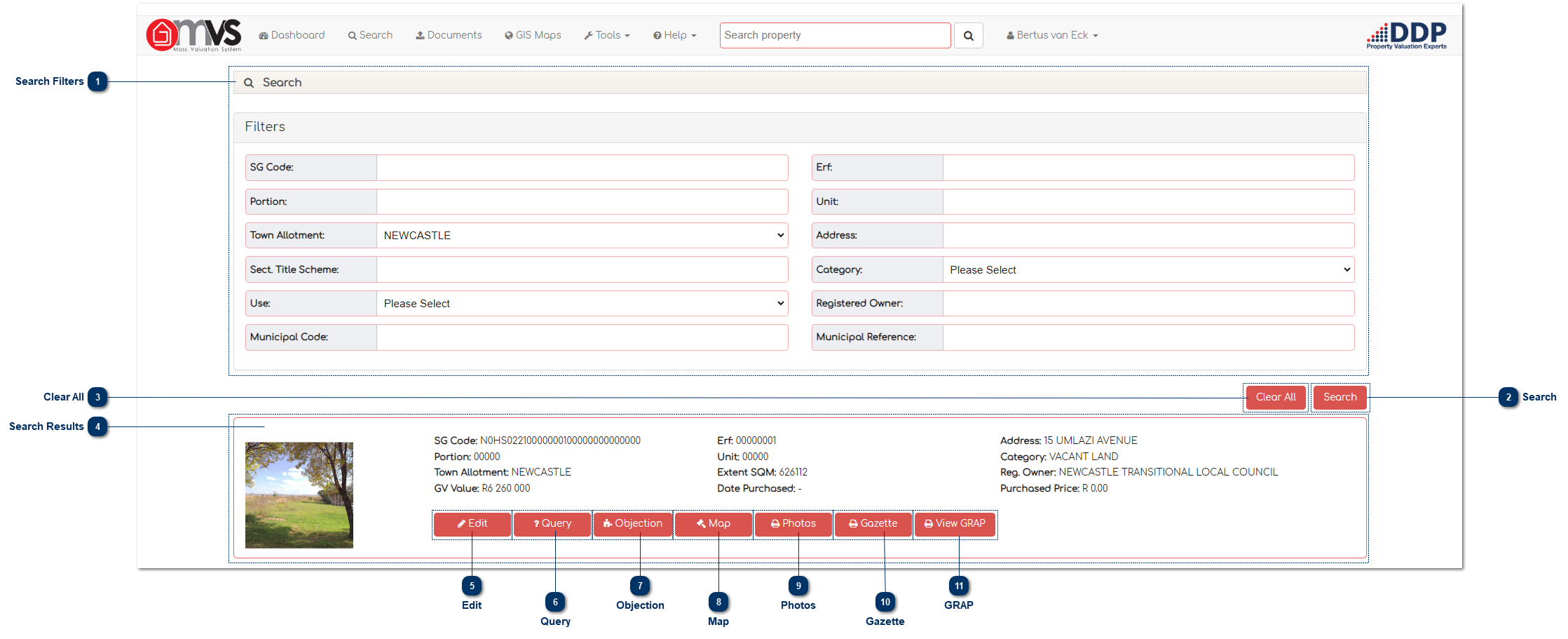
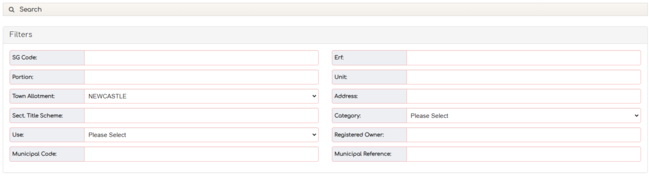
 Search FiltersThe User can refine the search with data that is on the database including Deeds, Financial Data and the Master File.
|
|
 SearchWhen Users have entered the search criteria they can click on the magnifying glass icon and the search results will be displayed below.
|
|
 Clear AllThis is where the user can Clear the data that is entered to create a new search.
|
|
 Search ResultsThe results will show according to the criteria that were searched for.
|
|
 EditWhen the User clicks on "Edit" the system will take the User to the Property Details page.
|
|
 QueryWhen the User clicks on "Query" the system will take the User to the Query page.
|
|
 ObjectionWhen the User clicks on "Objection" the system will take the User to the Objection page.
|
|
 MapWhen the User clicks on ‘Map’ the system will take the User to the Map page (Google Maps).
|
|
 PhotosWhen the User clicks on "Photos" the system will take the User to the Photos page.
|
|
 GazetteWhen the User clicks on "Gazette" the system will take the User to the Gazette page.
|
|
 GRAPWhen the User clicks on "Gazette" the system will take the User to the GAP page.
|
|