×
Menu
Index
  • 5. Menu / Dashboard
 

5. Menu / Dashboard

 
5. Menu / Dashboard
 
1

Dashboard

1. Dashboard
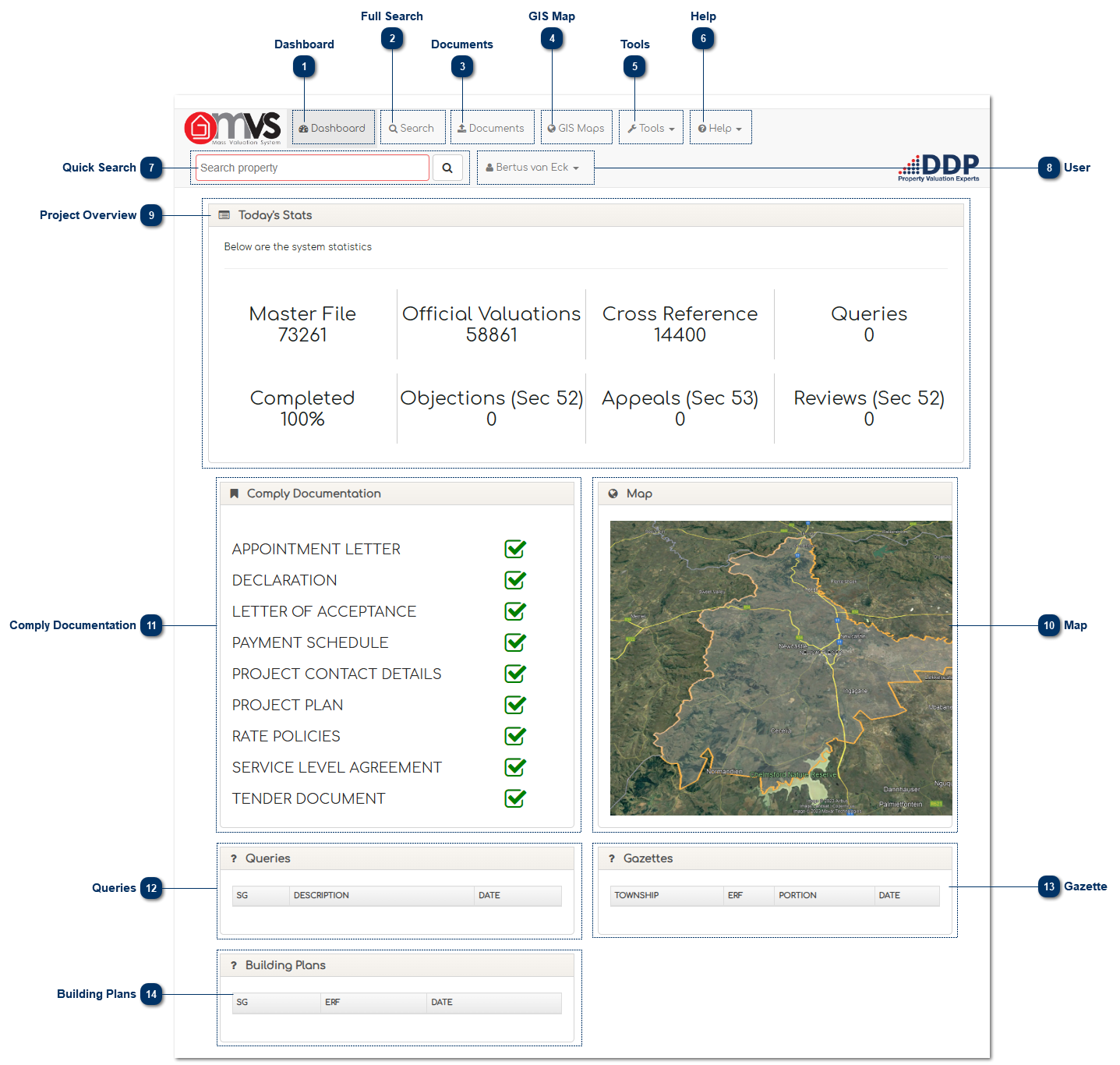
This provides access to the User’s dashboard to get a project overview.
 
2

Full Search

2. Full Search
This is a full search function, where Users can search erf numbers, Owners, SG Codes, etc.
 
3

Documents

3. Documents
This tab provides access to upload and download documents and view the Project and Property Library.
 
4

GIS Map

4. GIS Map
This tab allows Users to view the GIS Map. When the User clicks on the map the GIS will open in a new tab in your internet browser.
 
5

Tools

5. Tools
This tab gives the User access to import and download documents such as:
 
  • Objection Forms
  • Form A
  • Form B
  • Form C
     
  • Beswaar Vorms
  • Vorm A
  • Vorm B
  • Vorm C
     
  • Objection Valuers Decision
     
  • Appeal Forms
  • Form A
  • Form B
  • Form C
     
  • Appel Vorms
  • Vorm A
  • Vorm B
  • Vorm C
     
  • Municipal Field Cards
  • MFC Residential
  • MFC Depreciated Cost Replacement
  • MFC Income Capitalisation
  • MFC residential
     
  • MVS Application Form
     
  • Change Request Form
     
  • Section 79 Request
     
  • Section 78 Review
     
  • Section 78 Review Form
     
6

Help

6. Help
This tab gives the User access to Manuals such as:
 
  • Agricultural Data Collection Manual
  • Data Analyst Manual
  • Government Gazette
  • Municipal Property Rates Act
  • MVS User Manual
  • MVS Viewer Manual
  • Non-Residential Data Collection Manual
  • QGIS Manual
  • Residential Data Collection Manual
     
7

Quick Search

7. Quick Search
This is a quick search function, where Users can search erf numbers.
 
8

User

8. User
This is where the User can view his / her details on the MVS and change their password.
 
9

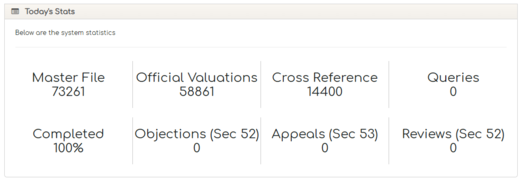
Project Overview

9. Project Overview
This is where the User can have a project overview of the following:
 
10

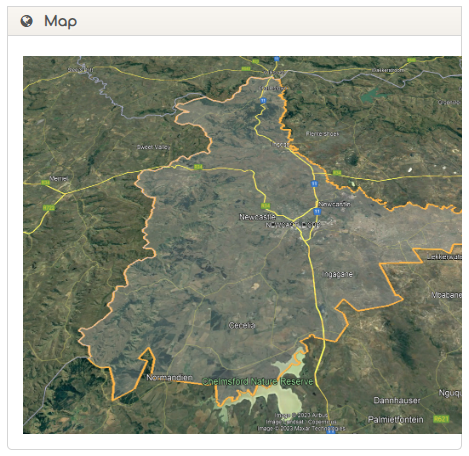
Map

10. Map
This tab allows Users to view the GIS Map, and when the User clicks on the map the GIS will open in a new tab in your internet browser.
 
11

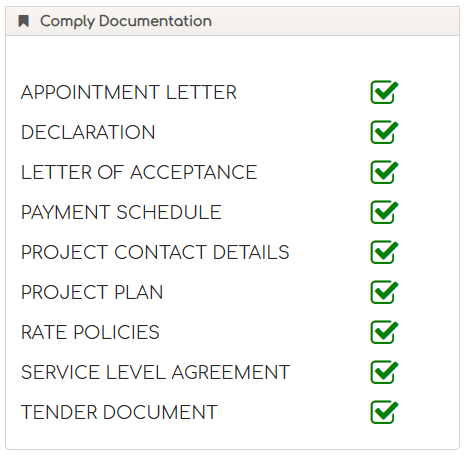
Comply Documentation

11. Comply Documentation
The dashboard also allows the User to access important documentation that is required for every project and simplifies the tracking for DDP’s internal quality compliance.
 
As some of the documents are confidential in nature, some Users will not have access to view,  print or save these documents.
 
12

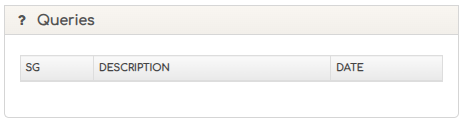
Queries

12. Queries
This is where the User can view his / her task box of queries that have to be completed.
 
When the User clicks on the query, the system will open the selected property where a query has been lodged and the Municipal Valuer will review the query accordingly.
 
13

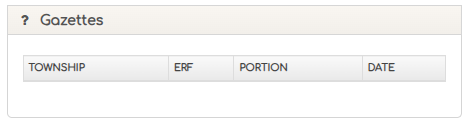
Gazette

13. Gazette
This is where the User can view his / her task box of Gazette that have to be completed.
 
When the User clicks on the Gazette, the system will open the selected property where a Gazette has been loaded and the Municipal Valuer will review the Gazette accordingly.
 
14

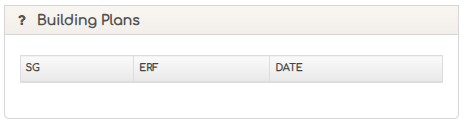
Building Plans

14. Building Plans
This is where the User can view his / her task box of Building Plans that have to be completed.
 
When the User clicks on the Building Plans, the system will open the selected property where a Building Plans has been loaded and the Municipal Valuer will review the Building Plans accordingly.
 
The online help was created with Dr.Explain