To properly display this page you need a browser with JavaScript support.
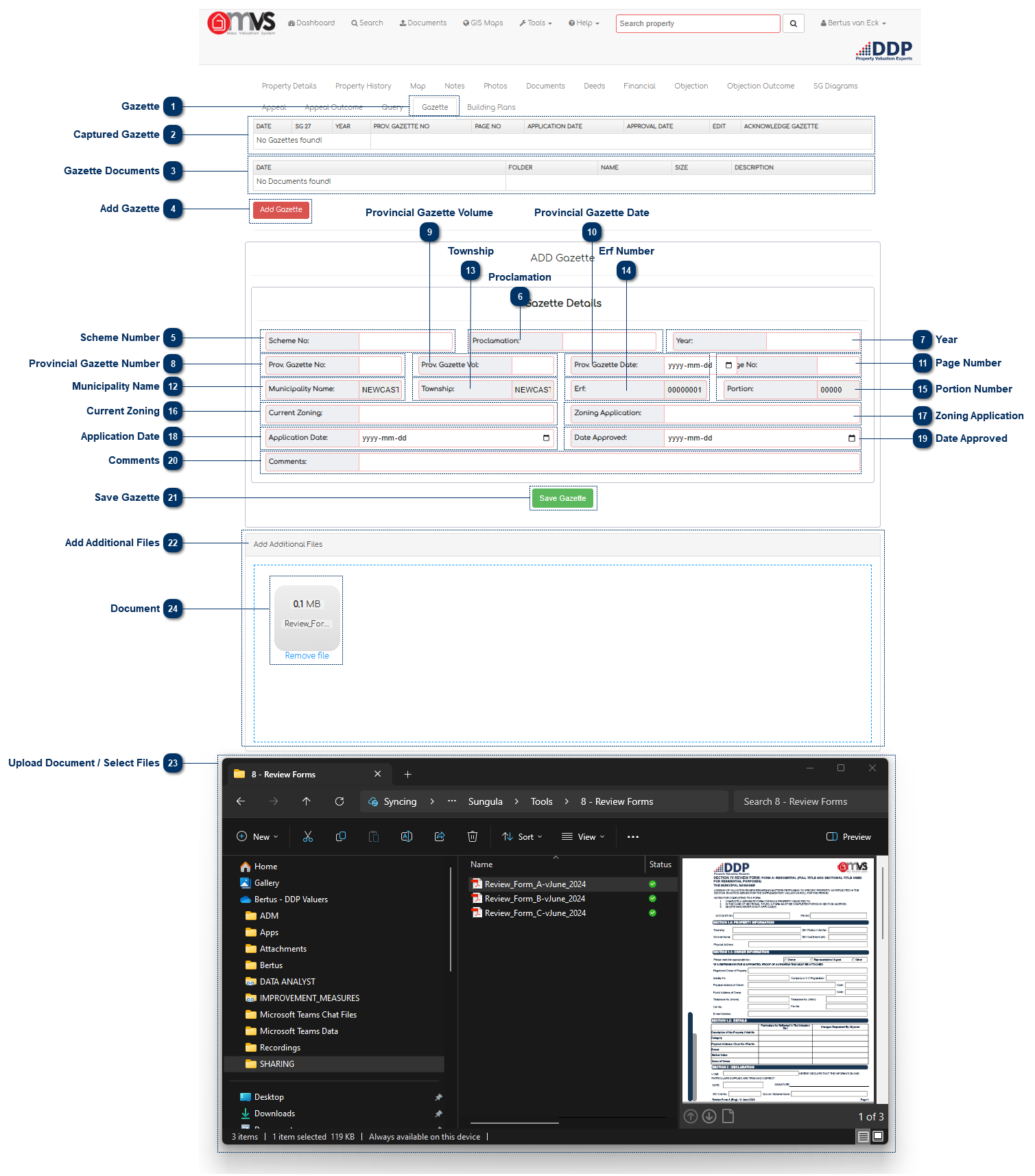
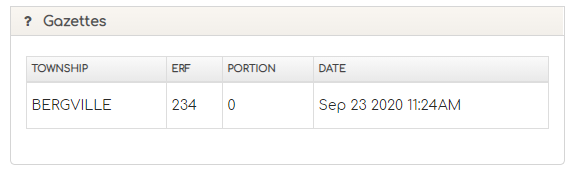
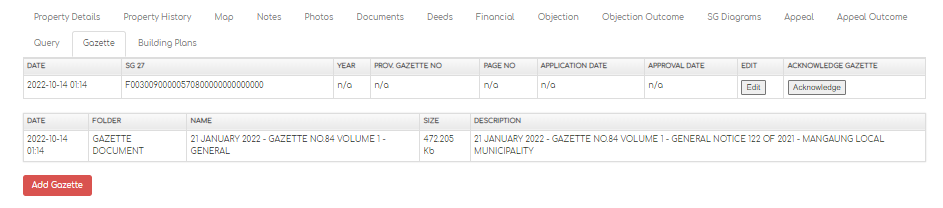
Gazette This is where the User can view and capture Gazette information on the MVS.
The User will search for the property on the quick search or full search on the MVS.
Captured Gazette This is where the User can view and captured Gazette information on the MVS.
Gazette Documents This is where the User can view Gazette documents on the MVS.
Add Gazette Users of MVS can capture Gazette data that will be sent to the Municipal Valuer for review and investigation by clicking on the "Add Gazette" button.
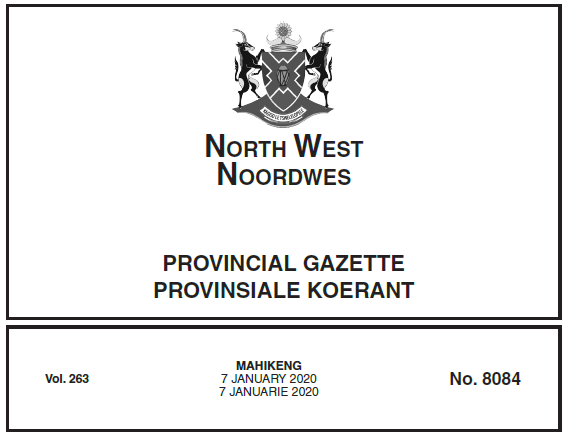
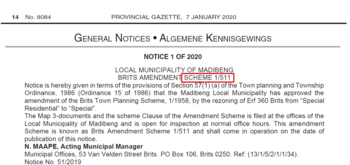
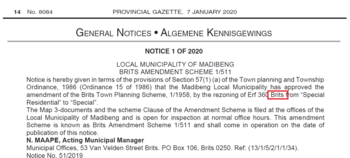
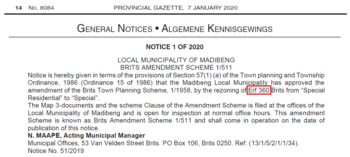
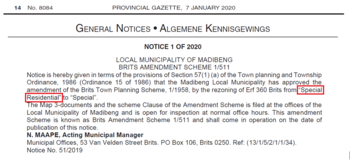
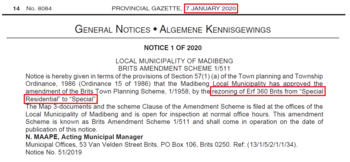
Example of Gazette:
Scheme Number This is where the User captures the Scheme Number.
The Scheme number that will be captured is 1/511
Proclamation This is where the User captures the Proclamation Notice.
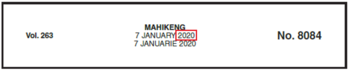
Year This is where the User captures the Year.
The Year that will be captured is 2020.
Provincial Gazette Number This is where the User captures the Provincial Gazette Number.
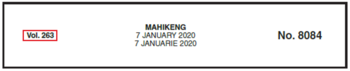
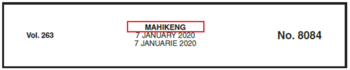
Volume 263 – Each year the volume number increases, for example North West 2020 the volume number will be Volume 263, North West 2021 the volume number will be Volume 264.
The Provincial Gazette Number that will be captured is 263.
Provincial Gazette Volume This is where the User captures the Provincial Gazette Volume.
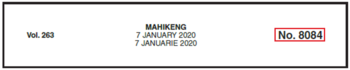
No. 8084 – This indicates how many number documents have been gazette within that specific Province.
Provincial Gazette Date This is where the User captures the Provincial Gazette date.
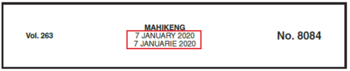
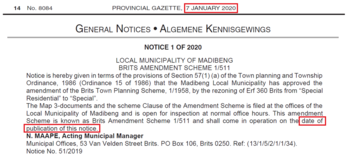
7 January 2020 – This indicates the date upon which the document was published.
The Provincial Gazette date that will be captured is 2020/01/07 this can be typed in or selected on the dropdown calendar.
Page Number This is where the User captures the Page Number.
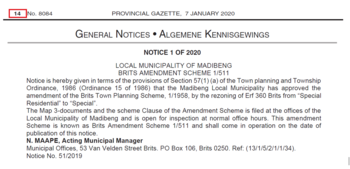
The Page Number that will be captured is 14.
Municipality Name This is where the MVS display the Municipality Name, this is a completed field.
Township This is where the MVS displays the Township, this is a completed field.
Erf Number This is where the MVS displays the erf number, this is a completed field.
Portion Number This is where the MVS displays the Portion number, this is a completed field.
Current Zoning This is where the User captures the Current Zoning.
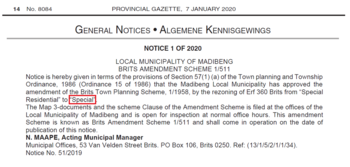
The Current Zoning that will be captured is Special Residential.
Zoning Application This is where the User captures the Zoning Application.
The Current Zoning that will be captured is Special.
Application Date This is where the User captures the Application Date.
The Application Date that will be captured is 2020/01/07 this can be typed in or selected on the dropdown calendar.
Date Approved This is where the User captures the Date Approved.
The Date Approved that will be captured is 2020/01/07 this can be typed in or selected on the dropdown calendar.
Comments This is where the User can captures Comments.
Any comment can be captured by the User.
Save Gazette When the User is finished capturing the Gazette, they may click "Save Query" and "Close". The information will then be sent to the Valuer and will appear in his/her task box on the MVS dashboard.
The Gazette can be reviewed by simply clicking on the Township or Description.
After the Municipal Valuer has completed the Gazette he / she can acknowledge the query and it will be removed from the Dashboard.
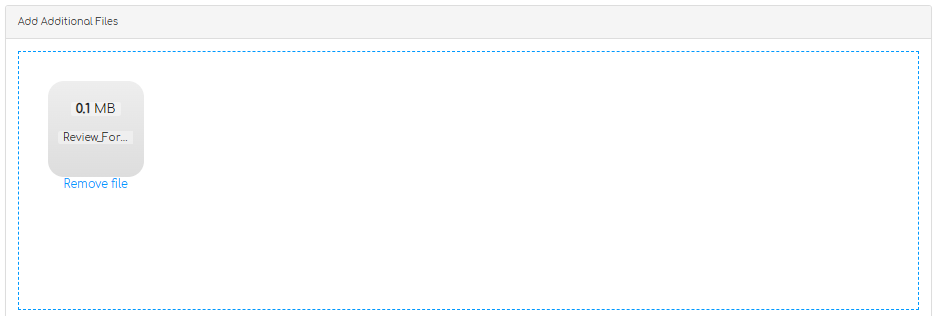
Add Additional Files Users can drag and drop to upload documentation for the Valuer including the advert or any other relevant documentation.
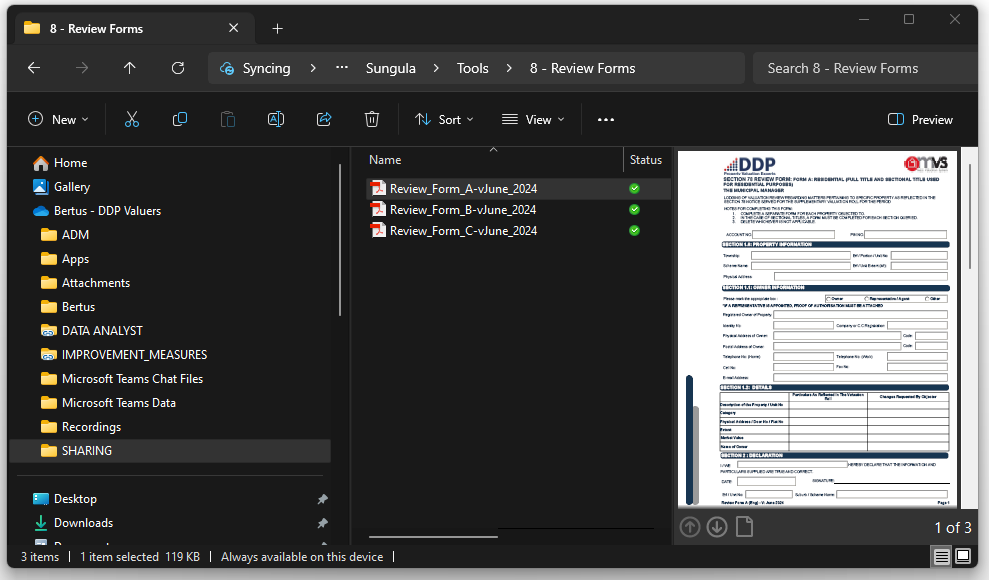
Upload Document / Select Files Open the location of the files that you want to upload in your file explorer.
Document Simply drag and drop the file in the blue block where it indicates "Drop files here to upload".
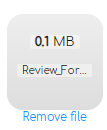
If it is the incorrect file just click on "Remove file" under the photo and select the correct file for upload.
The file will display as soon as it is uploaded and will be available in the Library.
When you refresh or go back to documents on that property the document will display in the Library.
Edit
This is where the User can Edit and change Gazette information that was captured on the MVS.
Acknowledge
This is where the Valuer can Acknowledge Gazette information that was captured on the MVS.
The Captured data will also appear on the Dashboard