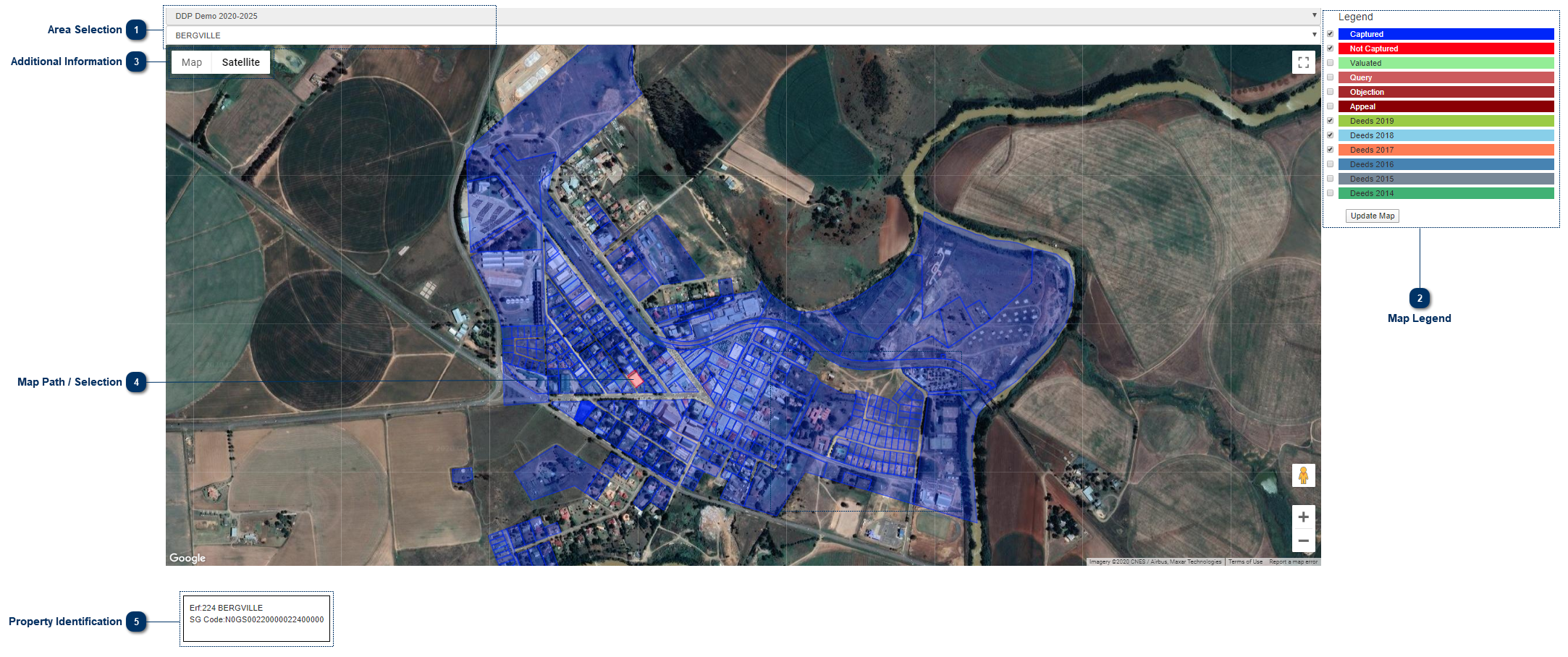
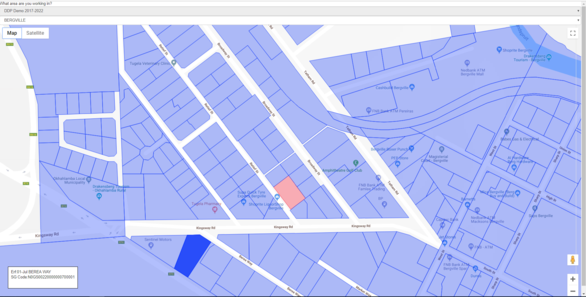
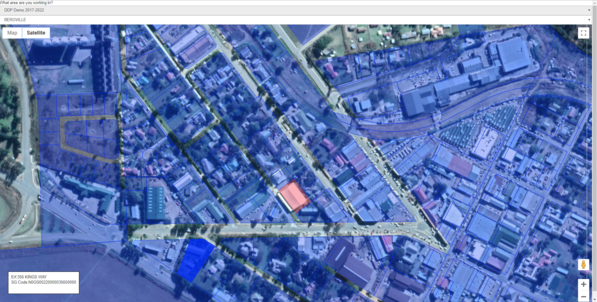
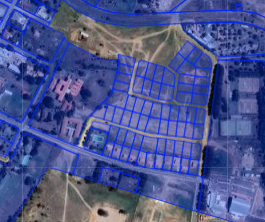
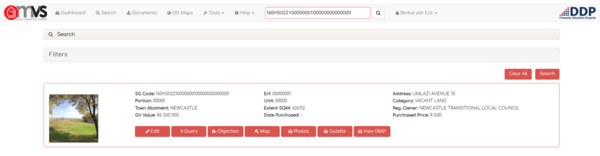
This is the Tab that displays the Geographic Information System (GIS) available to the User on the MVS for specific property or a township.
 Area Selection
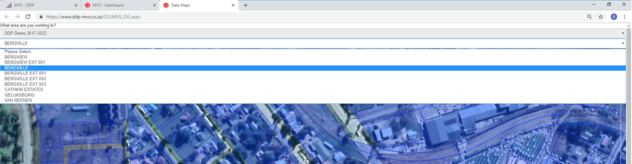
The User can select the suburb / township he/she is currently working in.
|
|
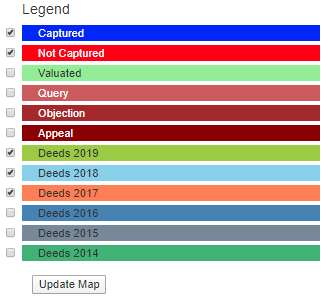
 Map LegendThe User can select information from the Legend that he / she wants to view by checking the tick boxes, after this is done click "Update Map".
|
|
 Additional Information
Map:
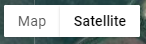
Terrain- Remove the Aerial / Satellite photos and show some additional data.
Satellite:
Labels - This adds additional data like road names, shops, offices, banks.....
|
|
 Map Path / Selection
Map Indicators:
Blue:
Properties that are Blue: the data collection process is completed.
Red:
Properties that are Red: the data collection process needs to be completed.
When the User wants to collect the data he/she can just click on the property and the field card will open.
|
|
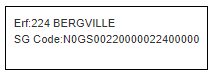
 Property IdentificationThis will show the User the property description when he/she moves the mouse over the cadastral layer.
When the User clicks on a property, the property will open on the MVS in a new tab on your internet browser.
|
|