To properly display this page you need a browser with JavaScript support.
5.9.1.3.7.7. Income Capitalisation Calculations
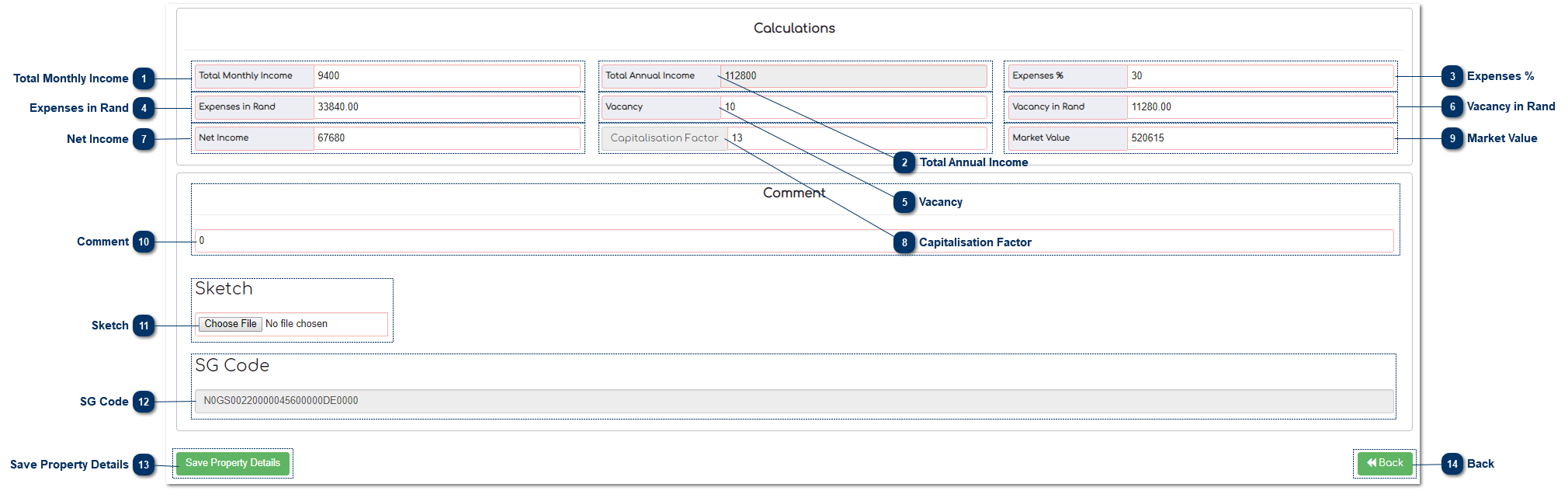
Total Monthly Income This is a calculation field and calculates the total monthly income.
Rental Forecourt + Rental Leisure + Rental Shops + Rental Parking + Rental Flats = Total Monthly Income
Total Annual Income This is a calculation field and calculates the total annual income .
Total Monthly Income X 12 = Total Annual Income
Expenses % This is where the User enters expenses in a percentage format.
Expenses in Rand This is a calculation field and calculates the expenses in a Rand value.
Total Annual Income X Expenses % = Expenses in Rand
Vacancy This is where the User enters vacancies in a percentage format.
Vacancy in Rand This is a calculation field and calculates the vacancy in a Rand value.
Total Annual Income X Vacancy % = Vacancy in Rand
Net Income This is a calculation field and calculates the net income.
Total Annual Income - (Expenses in Rand + Vacancy in Rand) = Net Income
Capitalisation Factor This is where the User captures the capitalisation percentage.
Market Value This is a calculation field, and calculates the market value .
Net Income / Capitalisation Factor = Market Value
Comment This is where the User can comment on any added information on the subject property.
Sketch When the User clicks "Choose File" he/she can select a sketch that he/she wants to upload.
After the file is selected click on "Open".
SG Code This is where the 30 SG code that is captured in the Master File is displayed. The 30 SG code is compiled with the 21 SG Code + Section + SS Unit. This field can be edited depending on the User’s rights within the MVS.
Save Property Details When the valuation is completed click "Save Property Details" to save data on the MVS.
Back Click the "Back" button to return to the Property Details page.