×
Menu
Index
 

5.3.2. Upload Document

 
5.3.2. Upload Document
1

Document Type

1. Document Type
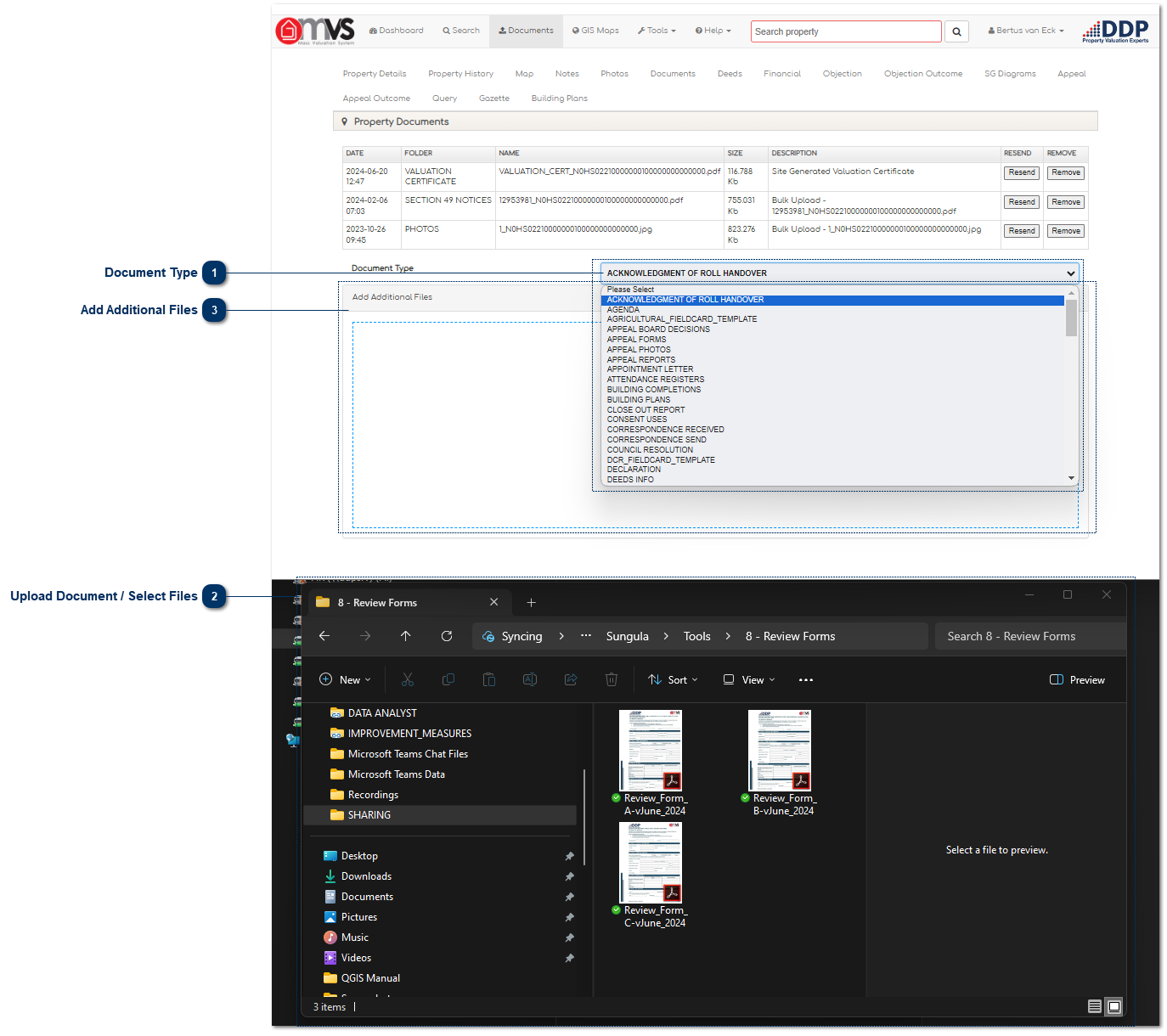
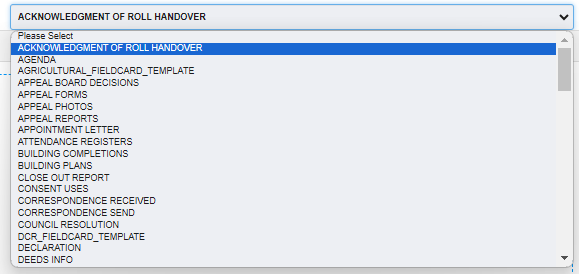
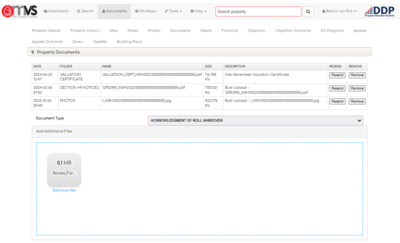
Select the document type. This enables the User to attach the document to a category, for example to Objection Forms. If there is no document type the User must close and create a folder for that specific document type. That folder will then show in the Library.
 
2

Upload Document / Select Files

2. Upload Document / Select Files
 
Open the location of the files that you want to upload in your file explorer.
 
3

Add Additional Files

3. Add Additional Files
Simply drag and drop the file in the blue block where it indicates "Drop files here to upload".
 
If it is the incorrect file just click on "Remove file" under the photo and select the correct file for upload.
 
The file will display as soon as it is uploaded and will be available in the Library.
 
When you refresh or go back to documents on that property the document will display in the Library.
 
 
The online help was created with Dr.Explain