×
Menu
Index
 

5.9.10. Objection Outcome

5.9.10. Objection Outcome
1

Objection Outcome Tab

1. Objection Outcome Tab
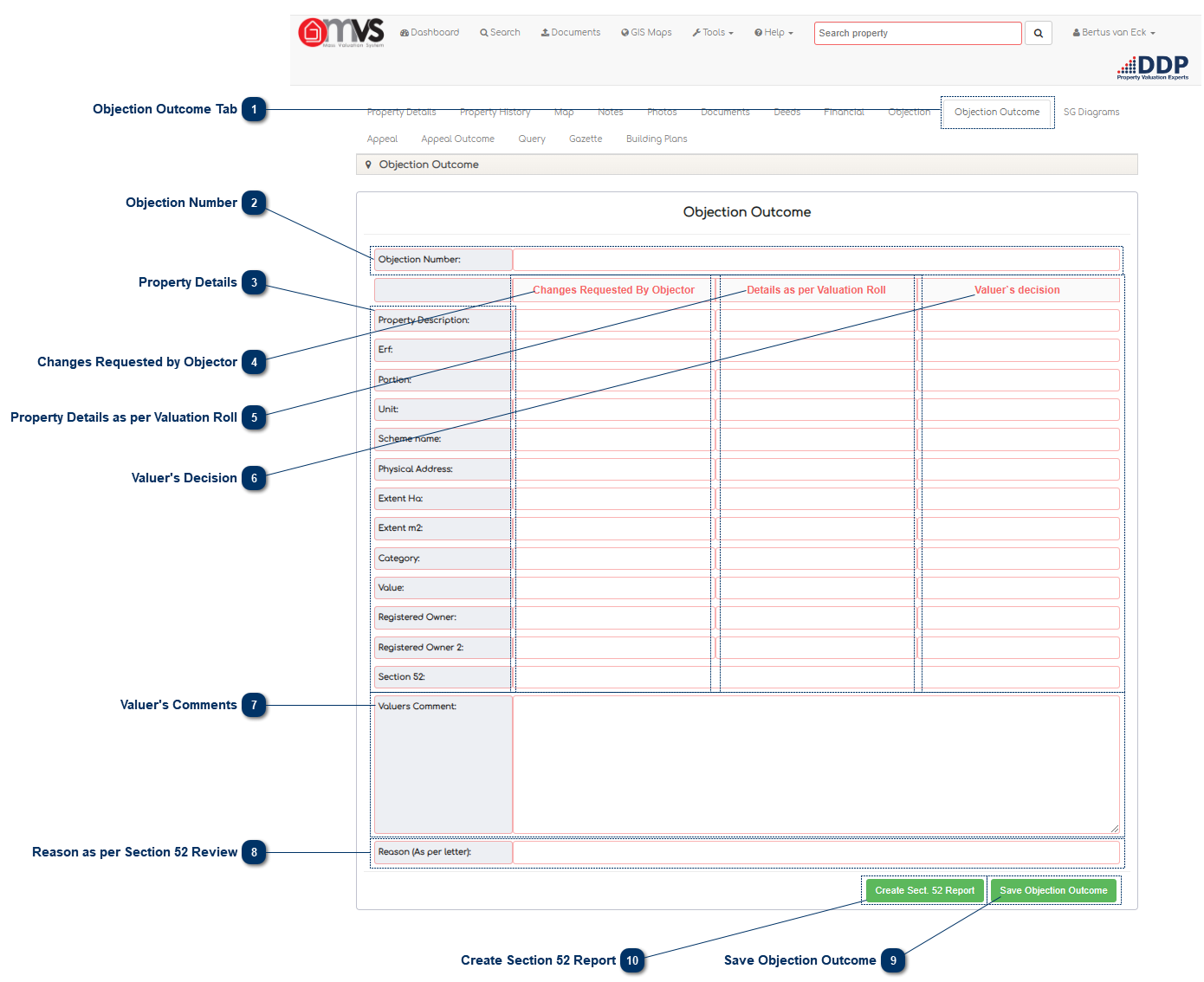
This is where the User can view and capture Objection Outcome on the MVS.
 
2

Objection Number

2. Objection Number
This is where the Objection Number will show for the Captured Objection.
 
3

Property Details

3. Property Details
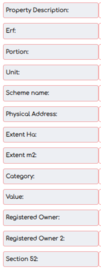
This is where the User can view the property information on the MVS.
 
4

Changes Requested by Objector

4. Changes Requested by Objector
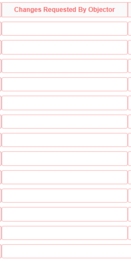
This is where the User captures the changes requested by the Objector, some of the information is auto completed from the information that was captured in the Objection tab.
 
5

Property Details as per Valuation Roll

5. Property Details as per Valuation Roll
This is where the information that was is in the published Valuation Roll is displayed.
 
6

Valuer's Decision

6. Valuer's Decision
This is where the User captures the Valuer's decision, some of the information is auto completed from the information that was imported on the MVS application that is used by the Data Analysis.
 
7

Valuer's Comments

7. Valuer's Comments
This is where the User captures the Valuesr's comments, some of the information is auto completed from the information that was imported on the MVS application that is used by the Data Analysis.

 
8

Reason as per Section 52 Review

8. Reason as per Section 52 Review
If a municipal Valuer adjusts the valuation of a property in terms of section 51(c) by more than 10 percent upwards or downwards
 
  • Yes, Valuation Appeal Board Review required as per Municipal Property Rates Act.
     
  • No, Valuation Appeal Board Review not required as per Municipal Property Rates Act.
  •  
9

Save Objection Outcome

9. Save Objection Outcome
When the User has completed all the fields, they should click on “Save Objection Outcome”.
 
10

Create Section 52 Report

10. Create Section 52 Report
This is where the User can generate a Section 52 Report.
 
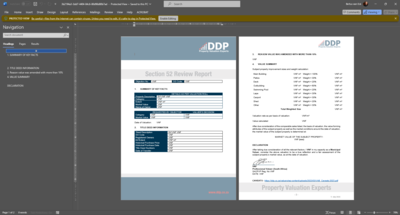
Click on the Create Report button, the download Report will appear, user can then download a workable Word document to Edit for the final Report.


Example of the Report is shown below:
 
 
The online help was created with Dr.Explain